Quick Start
This is the default routine for starting AI agent work, tracking progress, and finishing the task in KanVibe.
1. Register a project
On the main board, click the magnifying-glass directory scan button between the project filter and + New Task to open the project registry dialog. In the dialog, choose a local or remote git repository path and click “Scan & Register”; KanVibe then registers the project, reads existing worktree state, and installs the required hook files for supported agents.

Deleting a project removes it from KanVibe management only. KanVibe deletes the SQLite project record and associated KanVibe task records; existing git branches, worktrees, and files remain on disk.

2. Create a task
Add a TODO task from the board. When you provide a branch name, KanVibe creates a git worktree and attaches a terminal using the session type you picked — tmux, zellij, or terminal.
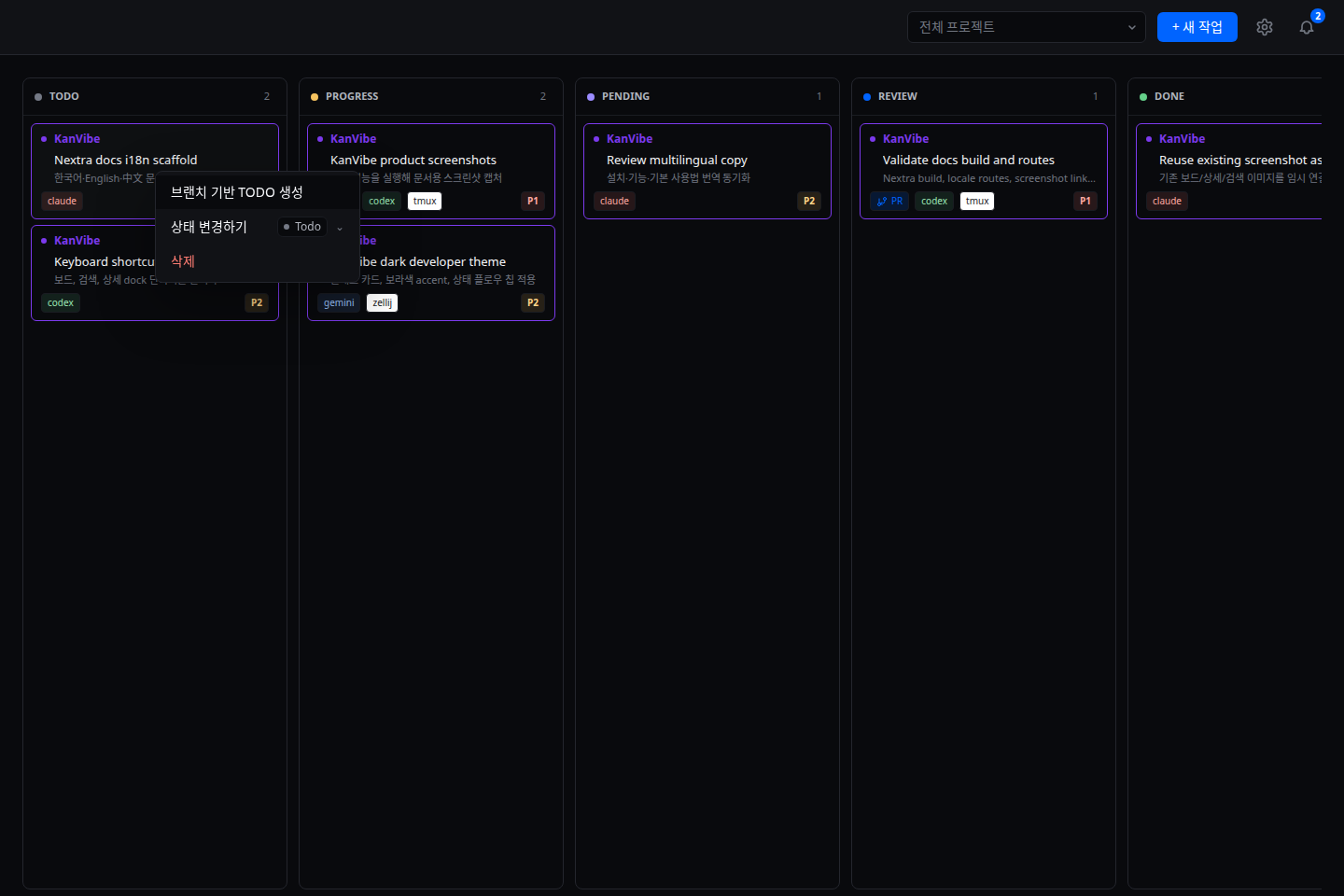
3. Work in task detail
Opening a task card moves you to its terminal workspace. The left dock switches task info, hook status, AI chat, and PR links, while the main terminal remains available for manual commands and agent interaction.
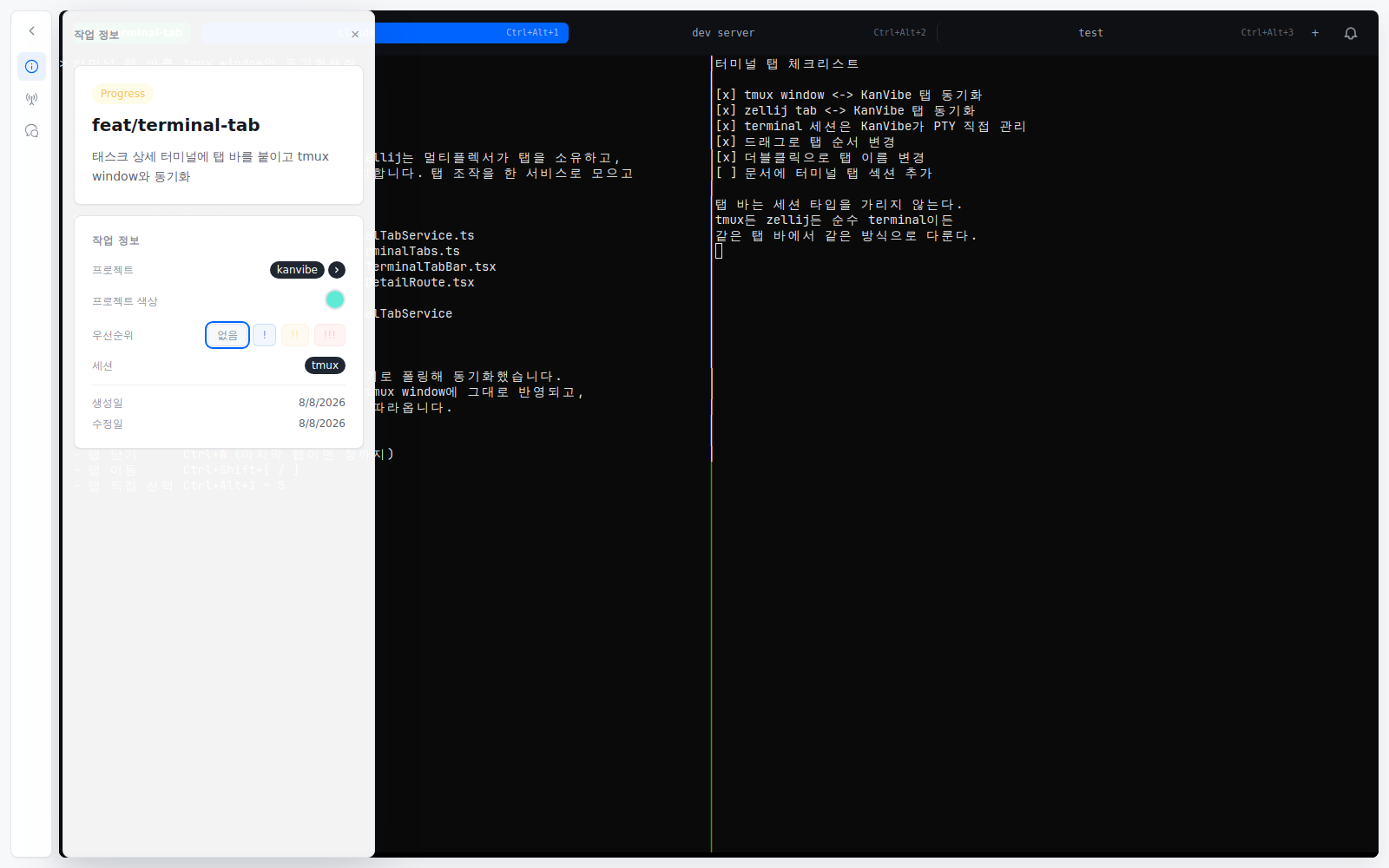
4. Let AI agents update status
When an agent starts work, the task moves to PROGRESS. If it asks a question, it can move to PENDING. When the response finishes, it moves to REVIEW. Manual drag-and-drop uses the same status model, so the board and task detail stay aligned.
5. Finish with DONE
When the task is complete, move it to DONE. DONE only changes the status; the branch, worktree, and terminal session stay in place. Delete the task when you want those resources cleaned up too.