
KanVibe Mobile: keep your task moving from your phone
KanVibe Mobile is the iOS and Android companion to KanVibe Desktop. Check progress, open the same task terminal, send input, and switch between saved PCs. Your repositories and processes stay on the connected PC.
Mobile terminal compatibility: herdr, tmux, zellij, and terminal sessions are all supported. Herdr sessions need a Desktop build that includes this feature, keep their original grid, and are read by scrolling.
Interface language: Mobile currently uses Korean interface labels. This guide gives English names with the Korean labels in parentheses.
Build Mobile and prepare Desktop
Mobile is currently available from source. Use an iOS or Android development environment and FVM to install the Flutter version pinned in mobile/.fvmrc. In a checkout of the KanVibe repository, run:
cd mobile
fvm install
fvm flutter pub get
fvm flutter run
Select your connected phone or simulator when prompted. iOS builds need macOS and the Xcode version required by the current mobile dependencies. See the Mobile developer README (Korean) for the current toolchain, release signing, and push configuration.
Install Desktop and keep it running on the PC you want to use. The Desktop build must include Mobile support; terminal tab creation, resizing, and the notification inbox also need a Desktop build that supports those features.
The phone must be able to reach the saved PC address and port. Use the same reachable local network, or a private network such as Tailscale when away from home. Receiving an internet push notification does not make the PC’s terminal reachable automatically.
Pair your phone once
- In Desktop, open Settings → Mobile Connection → Create pairing code.
- In Mobile, enter the Desktop address (데스크탑 주소), Port (포트), and the six-digit pairing code (연결 코드). Use port 9746 for a packaged Desktop app or 19746 for a development build. This port is encrypted, and Mobile pins the Desktop certificate fingerprint when it pairs. PC name (PC 이름) is optional.
- Tap Connect (연결). The board opens, and Mobile stores the connection in the device’s secure storage for future use.
The code expires after five minutes and can be used once. Create a new code if it expires or has already been used. Enter the PC’s network address rather than localhost when connecting from a physical phone. Find it in macOS System Settings → Network, or run ipconfig getifaddr en0 on the PC.
Find the task that needs you
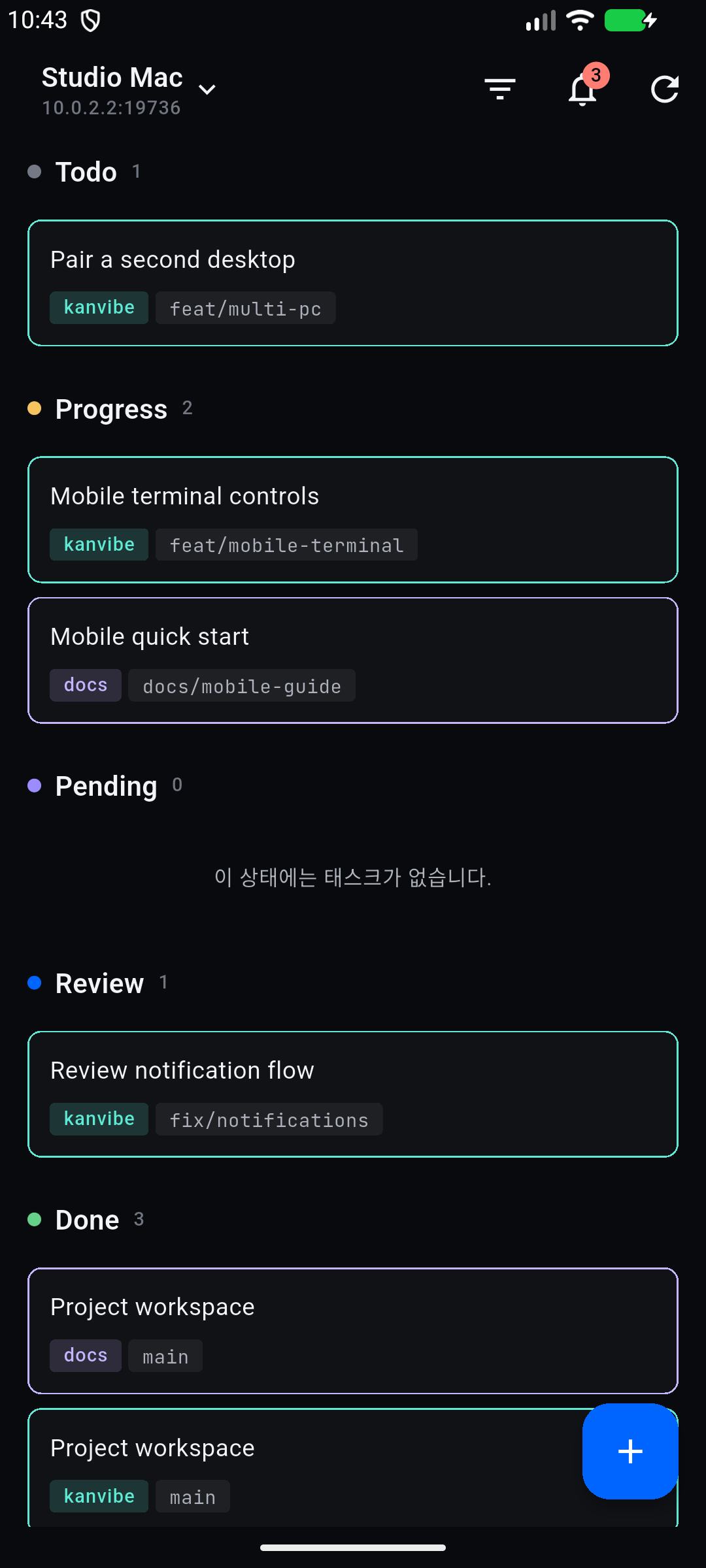
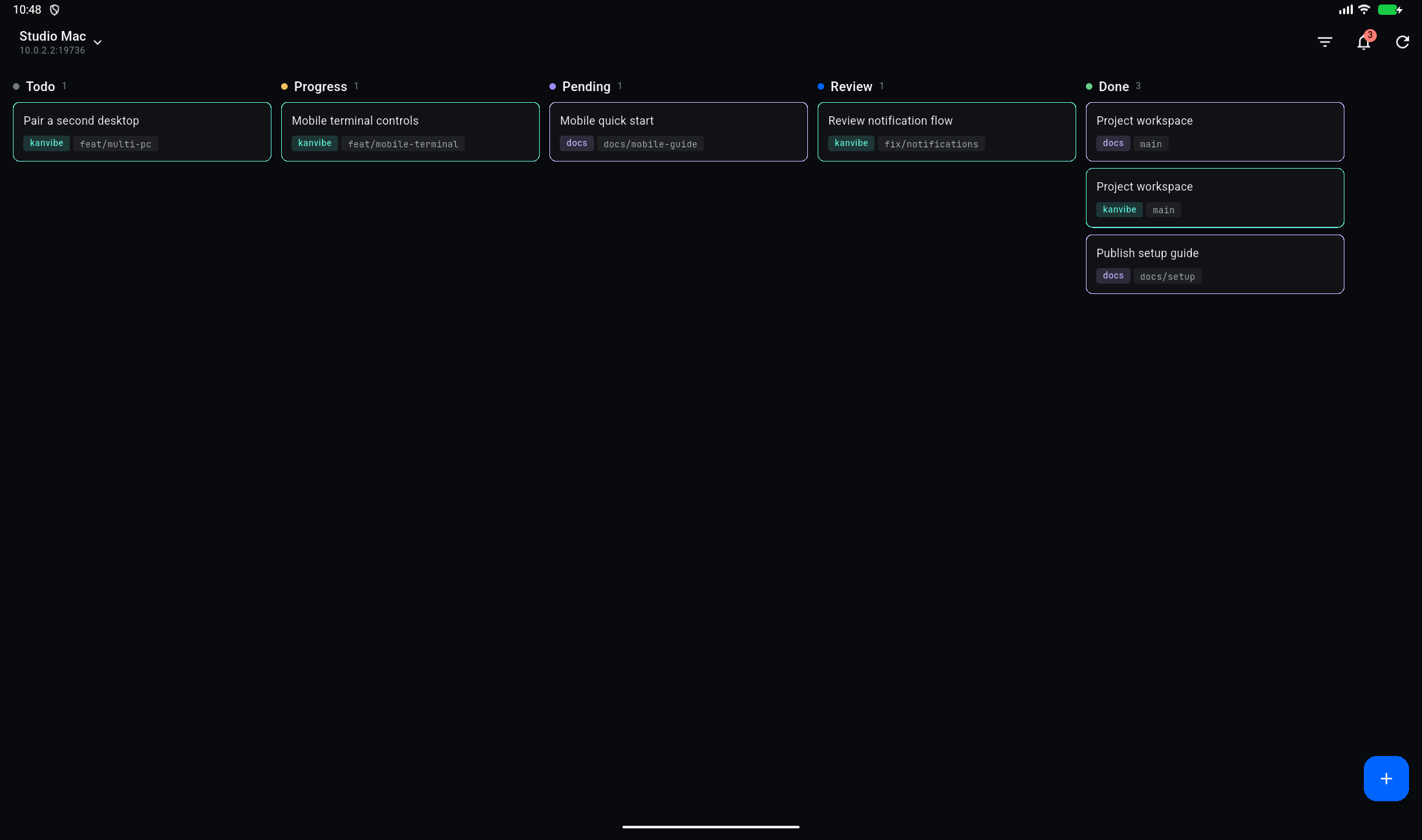
On a phone, tasks appear as vertical sections grouped by status. On a tablet, they appear in Kanban columns. Both show the same Desktop tasks and project colors.
- Open the project filter (프로젝트 필터) to search and select one or more projects. Selecting a root project includes its linked worktree tasks on the same host.
- Tap a task to open its details and terminal. Change its status from the task’s status control.
- Use New task (새 태스크) to choose a project and base branch and create follow-up work. You can also start from the open task’s header.
- Moving a task to DONE keeps its branch, worktree, and terminal session. Deleting a task is the separate resource-cleanup action.
Use the same running terminal
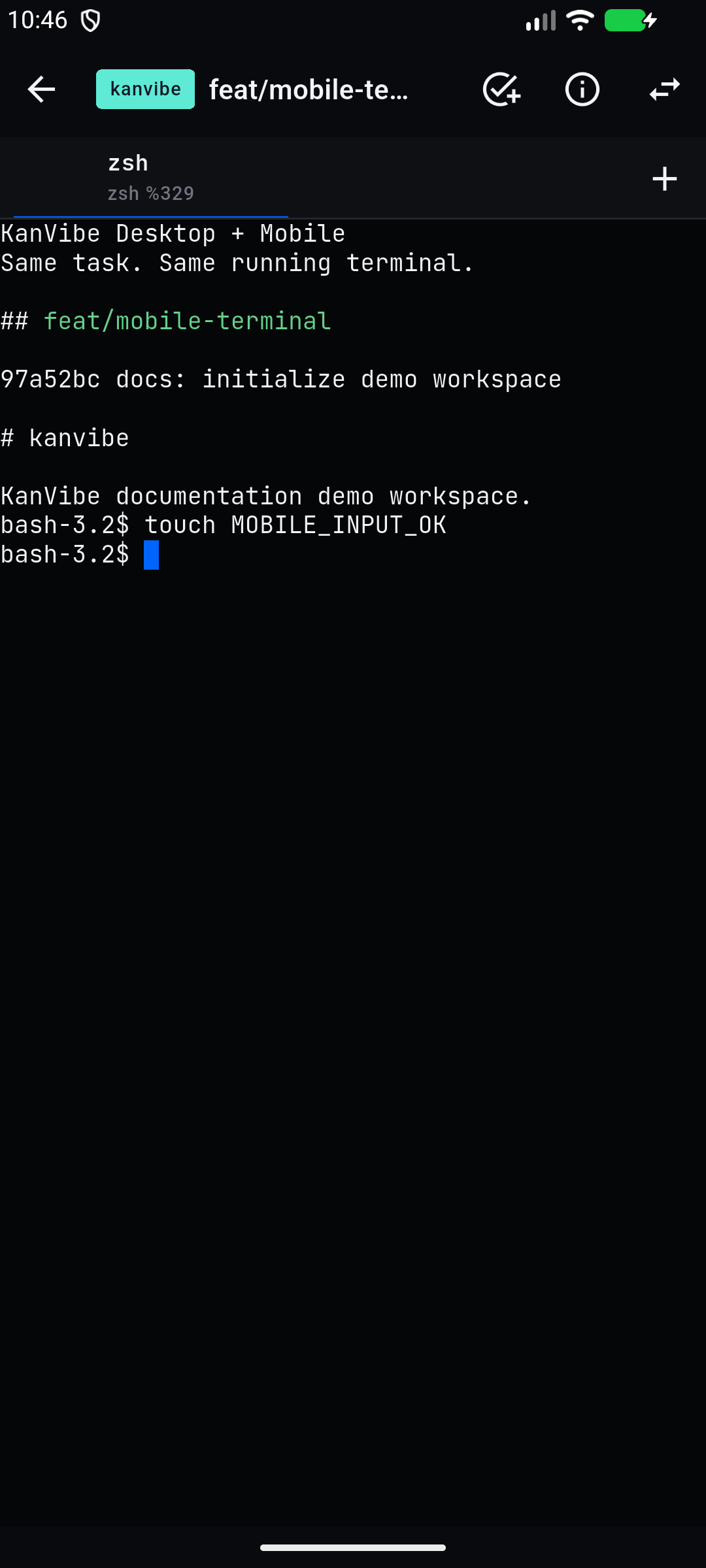
Each terminal tab displays one pane. Choose a tab to read its output, then tap the terminal to bring up the keyboard and send input to the actual session. Use the + at the right of the tab bar to add a shell tab to the current task.
Swipe to read earlier output. In full-screen programs that accept mouse input, vertical swipes become wheel events (except Herdr, where swipes always scroll the view). With supported tmux and plain-terminal sessions, the terminal resizes to fit the phone, rotation, and keyboard. While Mobile is attached, this also changes the size of that terminal on the PC; leaving the tab or putting Mobile in the background restores the applicable PC size. Herdr, Zellij, and older Desktop builds keep their source grid and allow scrolling in both directions.
For unattended work, use a persistent session such as Herdr, tmux, or zellij. A plain terminal shell belongs to Desktop and does not survive the Desktop app quitting.
Switch between your PCs
Tap the current PC name at the top of the board to open Connected PCs (연결된 PC), then choose Add PC (PC 추가) to pair another computer. Give each PC a recognizable name. Tap a saved PC to open its board without entering a new code.
Mobile keeps the project filter separately for each PC during the app session. If one PC is offline, return to the PC list and choose another. Each selected board belongs to that PC; switching PCs does not combine their task lists.
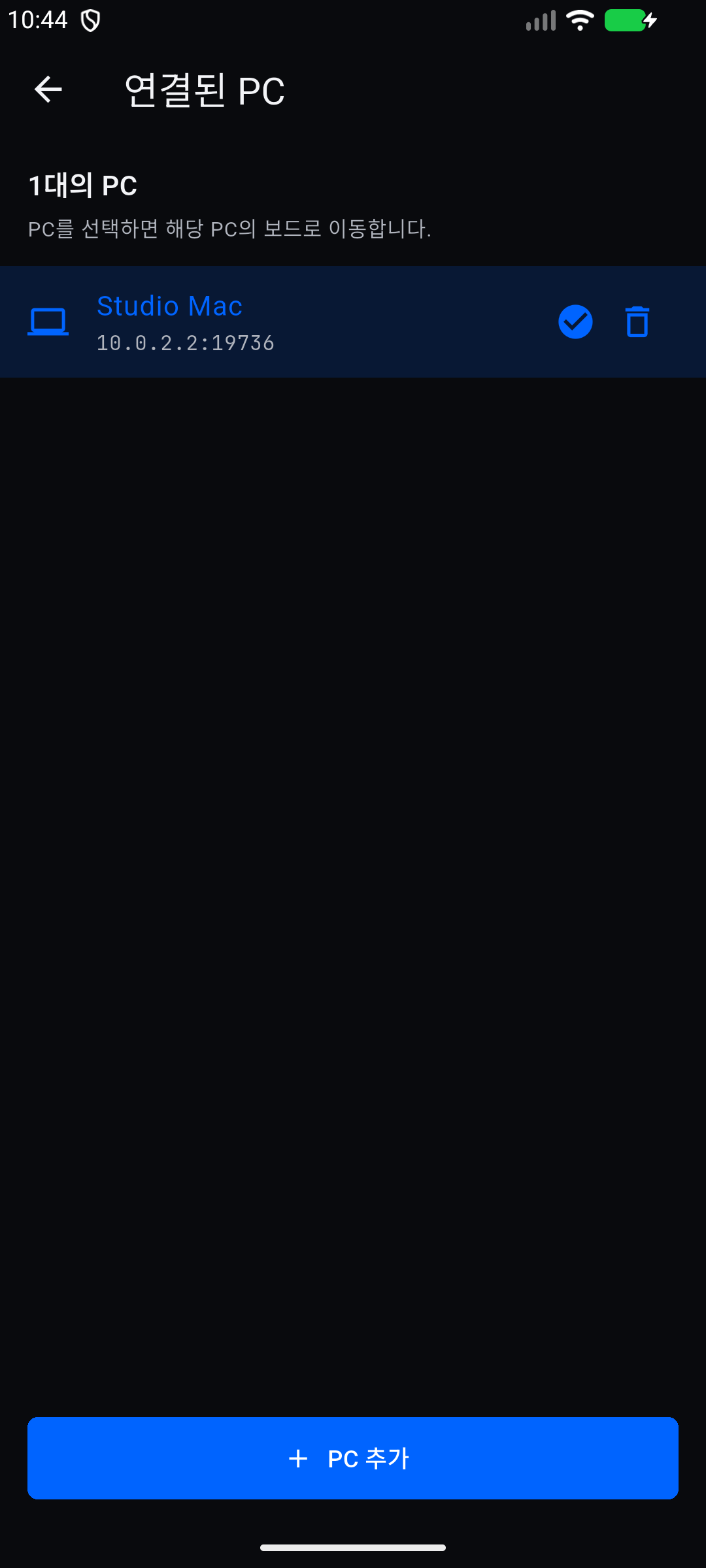
Delete a PC from Connected PCs (연결된 PC) to remove its saved connection and revoke this device on that PC. Other PC connections remain. If the PC cannot be reached, also remove this device in that PC’s Desktop settings later. After deleting the current PC, choose another PC yourself.
Read the notification inbox
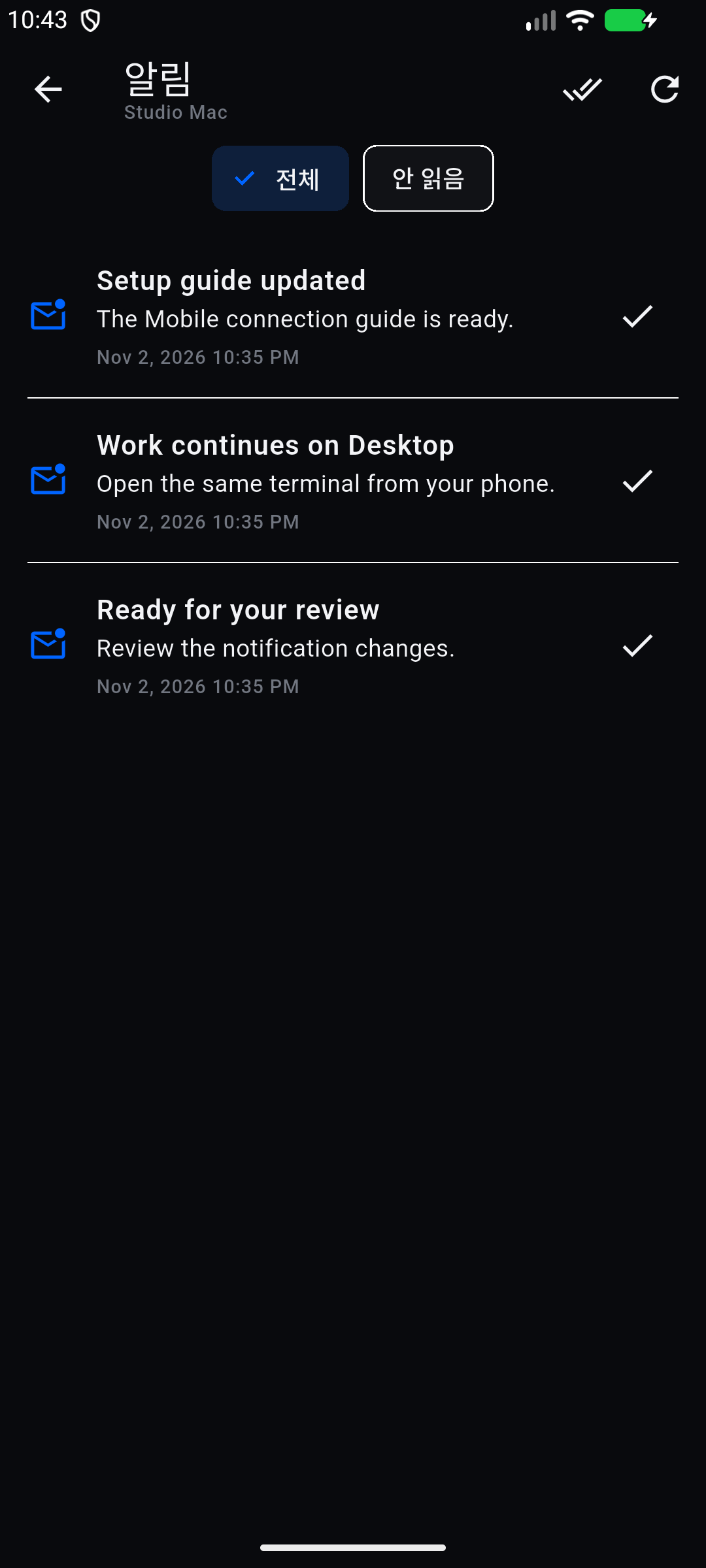
The board’s Notifications (알림) button opens the selected PC’s Desktop inbox. The badge counts unread notifications. Filter All / Unread (전체 / 안 읽음), mark individual notifications read (읽음 처리), or mark all read (모두 읽음). Desktop and Mobile share this read state and the most recent 100 notifications.
Tap a task notification to mark it read and open the latest task. If the task was deleted, Mobile shows an explanation. Notifications without a task can be read in the inbox; any associated Desktop-only action still needs Desktop.
Understand foreground updates and background push
While Mobile is active, it connects to saved PCs over authenticated WebSockets. Hook events update task status and can show system notifications. An event from another saved PC can take you to that PC and its task when tapped.
When Mobile is in the background or the screen is locked, event and terminal sockets close. Background notifications require both mobile Firebase/APNs configuration and a Desktop push relay, plus OS notification permission. Source builds without that configuration still support the app and foreground WebSocket updates. Follow the push setup instructions (Korean) if you need background delivery.
The PC must remain running to send new hook events. After tapping a push, task loading and terminal input still connect directly to its saved address. Android force-stop prevents push delivery until you reopen the app. Background execution and notification delivery depend on the OS; this is not a continuously running background terminal.
If the connection does not work
| Symptom | What to check |
|---|---|
| ”Code is incorrect or expired” (코드가 맞지 않거나 만료되었습니다) | Check for typos, then create a fresh code; it expires in five minutes and is single-use. |
| ”Already registered PC” (이미 등록된 PC입니다) | Choose that PC from Connected PCs (연결된 PC) instead of pairing again. |
| PC cannot be reached | Desktop is running, the address and port are correct, and local network or Tailscale routing and firewall rules allow access. |
| Notification arrives but task does not open | The saved PC address must also be reachable from the phone’s current network. |
| ”No terminal session” (이 태스크에는 터미널 세션이 없습니다) or terminal unavailable | Use a Mobile-compatible Desktop build. If Mobile says Herdr is not installed, connect a Herdr session on Desktop to install it. Tasks without a project or branch cannot restore a missing session automatically. |
| No background notifications | Check mobile Firebase/APNs configuration, Desktop relay configuration, OS permission, and whether Android has force-stopped the app. |
| Task from a notification is missing | The task may have been deleted or its PC connection removed. Open the board or PC list to choose current work. |